Connected Shapes
Overview
Section titled “Overview”Connected shapes let you build a diagram without drawing a single arrow. Select a shape or sticky note, click the arrow handle on the side where the next step goes, and Bizby adds a new shape there, joined by a connector and ready for you to type.
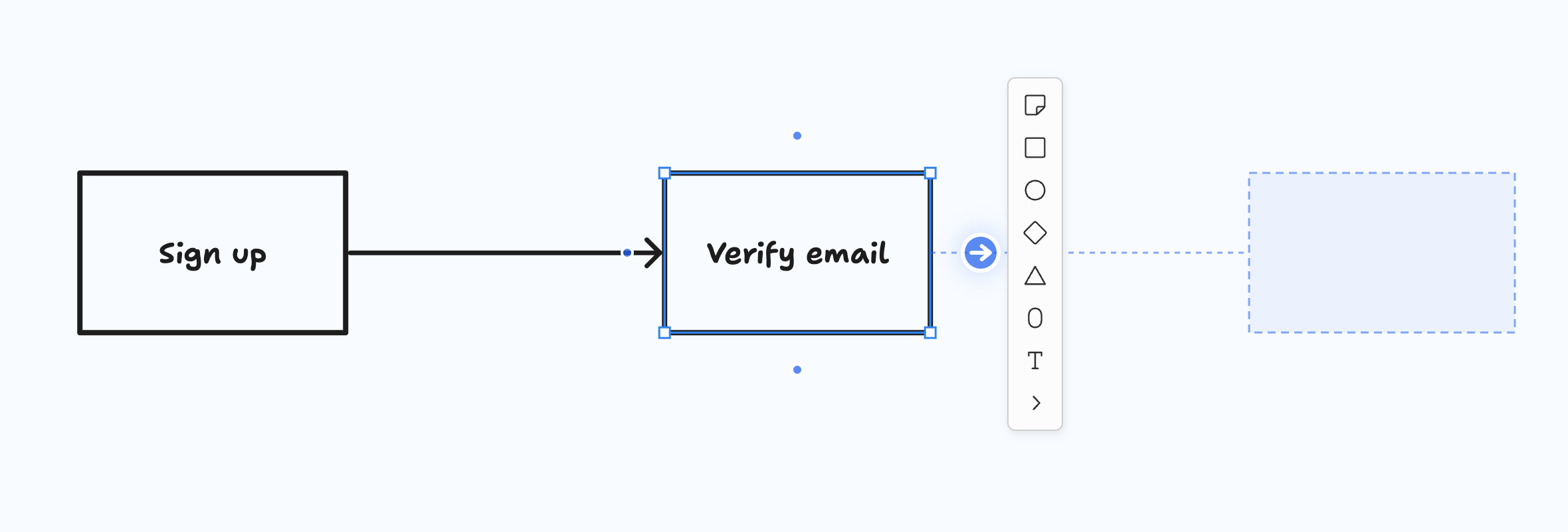
Connected shapes work from sticky notes, basic shapes, process shapes, text, polls and decision notes.
Add the Next Shape
Section titled “Add the Next Shape”- Select a shape or sticky note
- Hover the arrow handle on the side where the next shape should go. A dashed preview shows where it will land
- Click the arrow handle
Bizby adds a copy of the shape on that side, draws a connector between the two, and opens the new shape for typing. Type its label, then click the next arrow handle to keep going. Click the same handle again to fan out more shapes beside the first.
Text, polls and decision notes are not copied: clicking their arrow handle opens the shape menu so you can pick what comes next.
Choose a Different Shape
Section titled “Choose a Different Shape”Hovering an arrow handle also opens a small menu beside it with the shapes that usually come next: sticky note, text, rectangle, ellipse, diamond, triangle and oval. Hover an option to preview it, then click it to add that shape instead of a copy.
- All shapes opens the menu into a grid of every shape. Fewer shapes folds it back
- From a process shape, the menu offers flowchart symbols instead: process, decision, terminator, data, document, predefined process and database
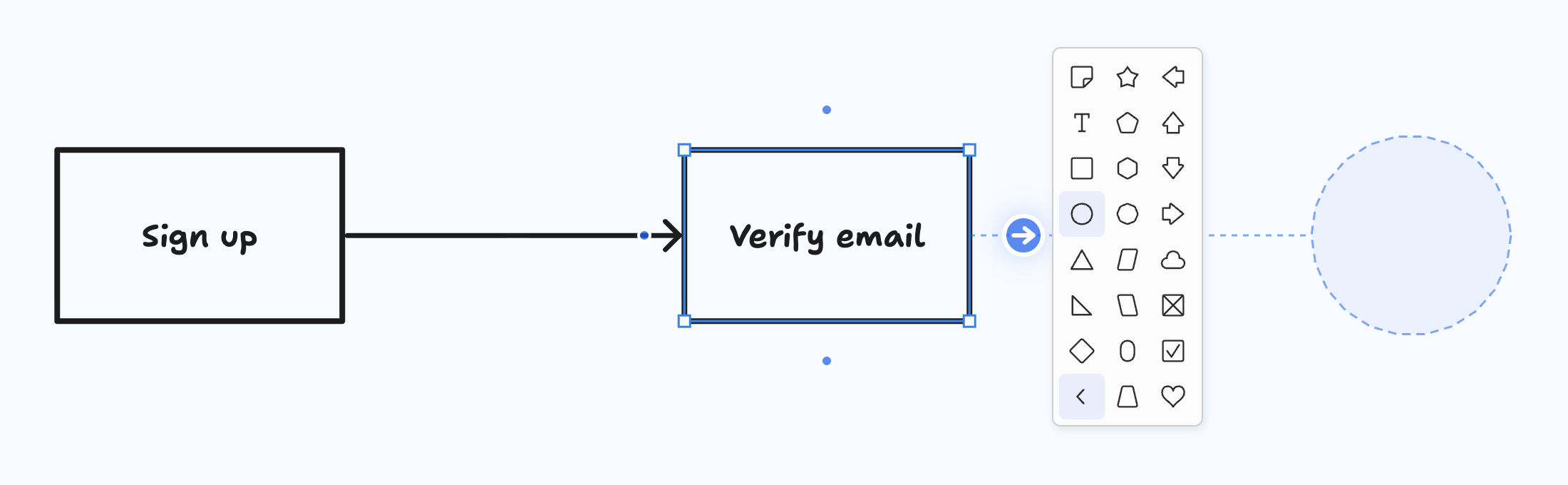
Drag a Connector to Empty Space
Section titled “Drag a Connector to Empty Space”Drag from an arrow handle and drop the connector on empty canvas. The same menu opens at the tip, with a preview, so you can pick the shape the connector ends on. Drop it on another shape instead to simply connect the two.
From the Keyboard
Section titled “From the Keyboard”With a single shape selected, press Option+Shift+Arrow (Mac) or Alt+Shift+Arrow (Windows) to add a connected shape on that side, just as a click on that handle would.
How New Shapes Look
Section titled “How New Shapes Look”- A copy keeps the source’s size, colours, border and outline
- A different shape takes the source’s colours and is sized to sit neatly beside it, so a row of shapes lines up
- A flowchart symbol keeps its own proportions at the source’s height
- A sticky note from a sticky note matches its size and text style. A shape from a sticky note takes the sticky’s colour
- The connector uses the arrow style you last chose, as an elbow connector between the facing edges
Where New Shapes Land
Section titled “Where New Shapes Land”Bizby places each new shape at an even distance from its source, in the nearest open spot it can find:
- It steps around shapes that are in the way, and stays near its source
- It never lands off screen
- A shape added inside a frame, or on a coloured band or background box, stays there with its source
Related Features
Section titled “Related Features”- Arrow Handles - Draw arrows between shapes by hand
- Process Shapes - Flowchart symbols for process diagrams
- Frames and Groups - Organize shapes into frames